
The NVIDIA screen-rotation bug
Rotated a monitor to portrait on an NVIDIA system and your mouse still behaves like it's in landscape? You push the cursor sideways and it travels up and down instead — the pointer moves the wrong direction, and part of the screen becomes a dead zone the cursor can't reach.
It usually starts right after the NVIDIA app or Control Panel changes any display setting, and a reboot doesn't fix it. This is a well-known NVIDIA driver bug — not something you did wrong.
How TrueRotate fixes it
TrueRotate rebuilds the cursor's coordinate mapping every time it rotates, using the Windows Connecting and Configuring Displays (CCD) API with forced mode re-enumeration. The wrong-axis behavior and dead zones simply never appear.
Rotate any monitor to 0°, 90°, 180° or 270° from a global hotkey or the tray menu. As long as you rotate from TrueRotate, the mouse tracks normally on every display — even in multi-monitor and multi-GPU setups, including the dual-monitor case where the mouse moves the wrong direction after one screen is rotated.
Features
Global rotation hotkeys
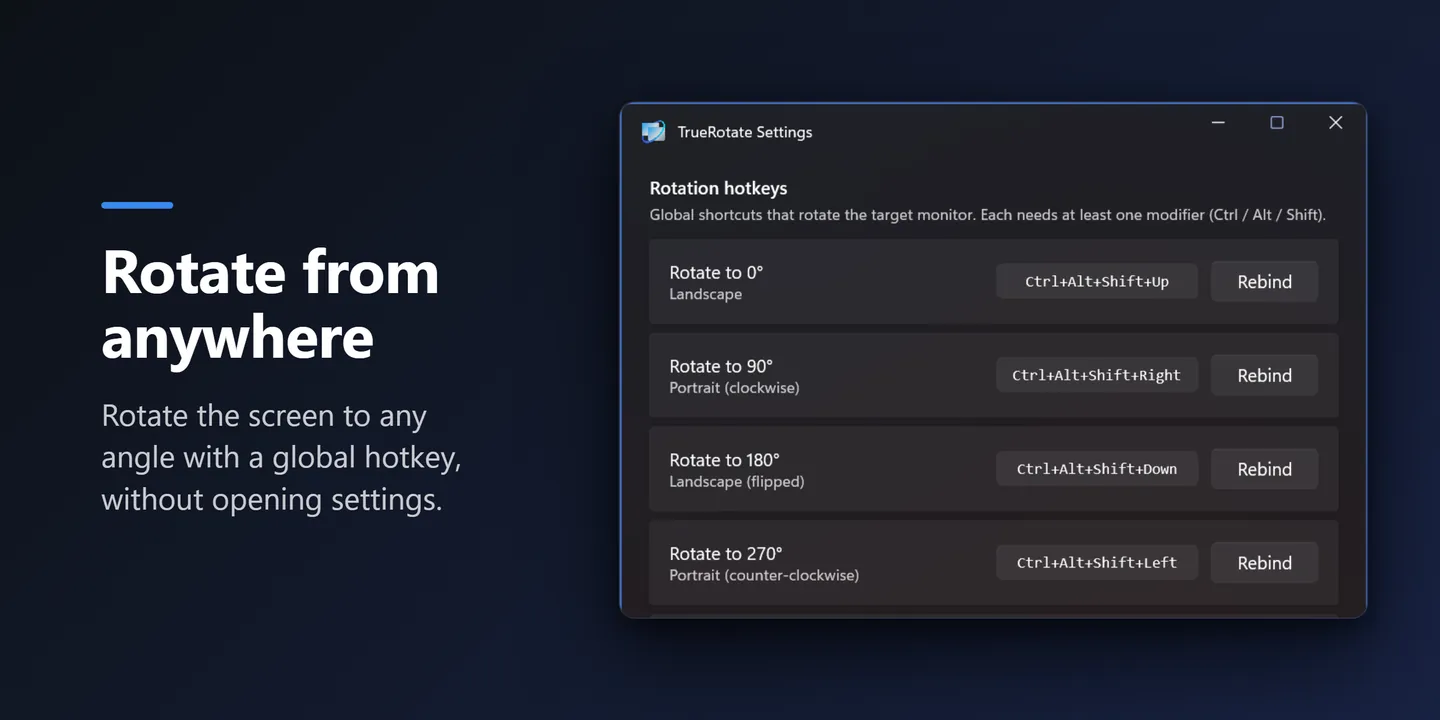
Ctrl+Alt+Shift+Arrow by default, fully rebindable. Rotate from anywhere without opening Settings — a reliable alternative when the Windows or NVIDIA rotate-screen shortcut isn't working.
Fixes the NVIDIA axis bug
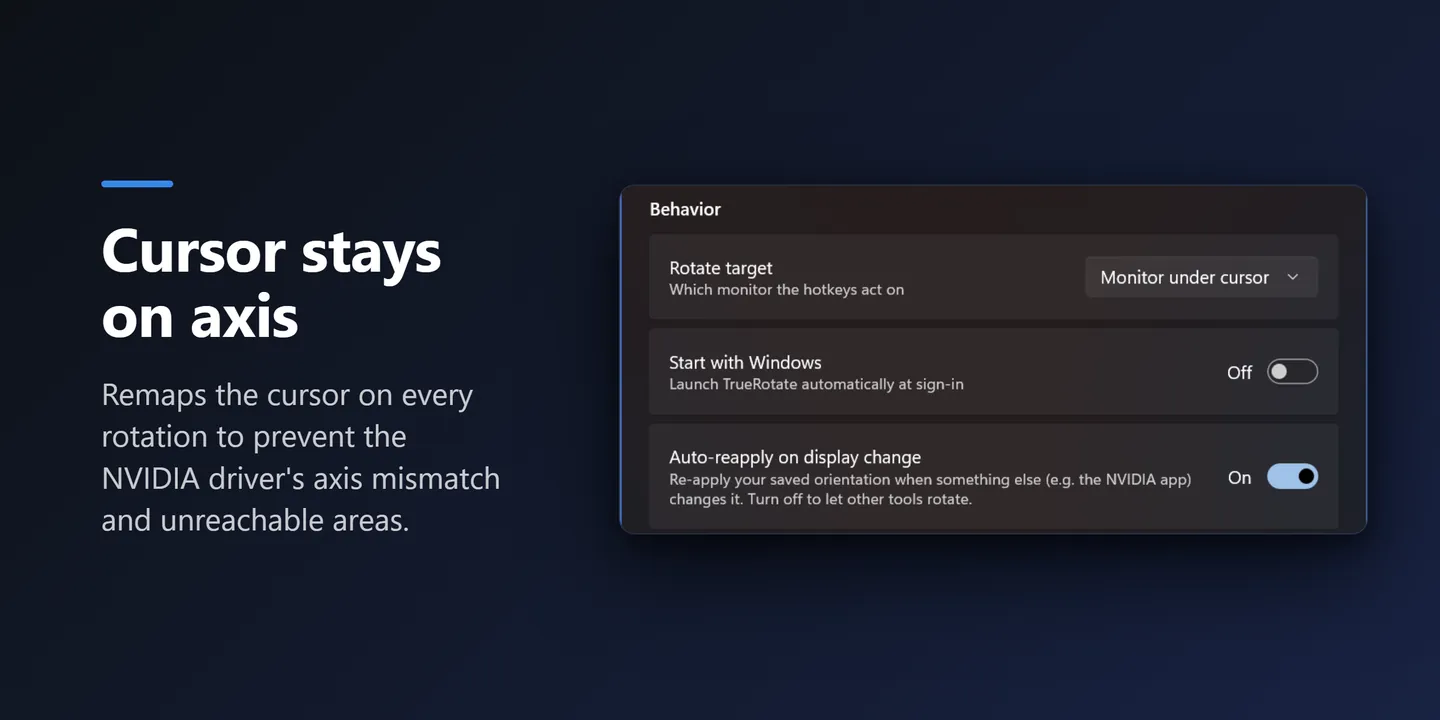
Remaps the cursor on every rotation, so the wrong-axis movement and dead zones never come back.
Per-monitor hotkeys
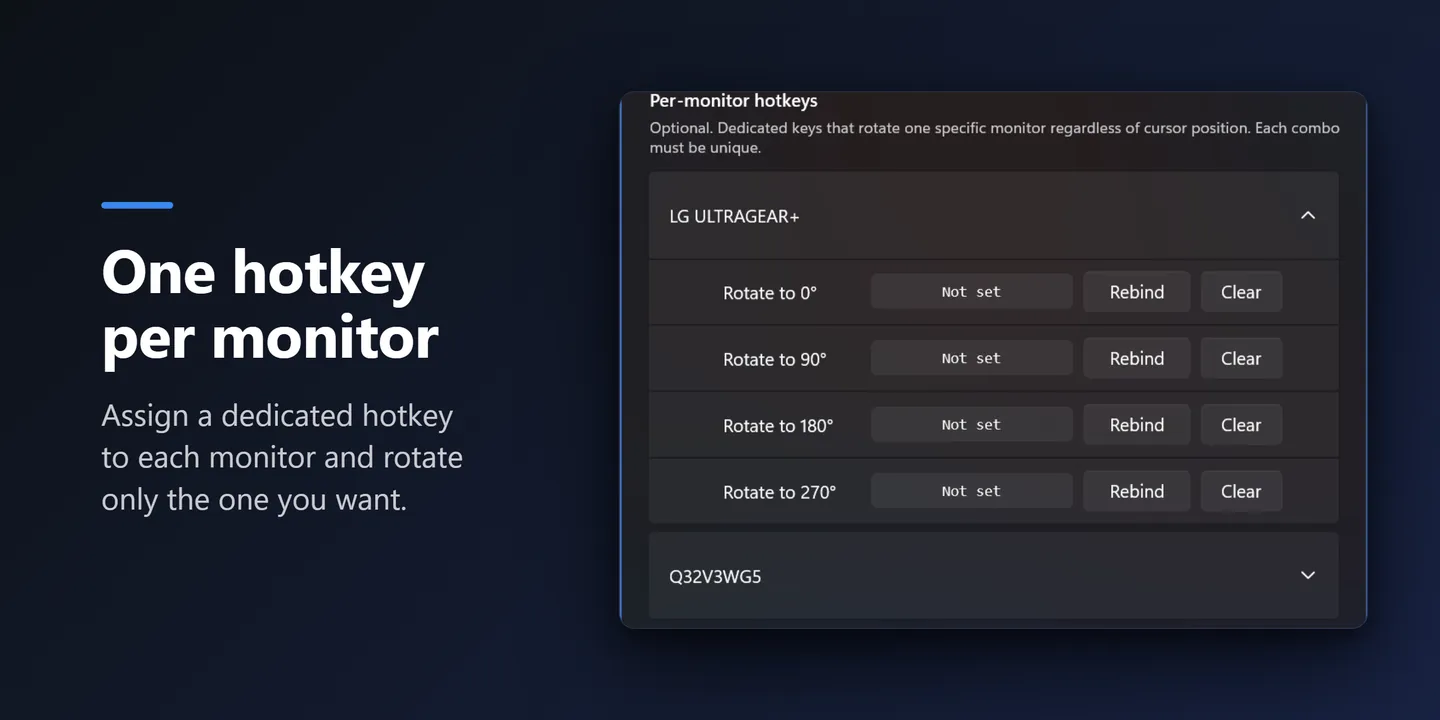
Give each display its own dedicated rotation keys, independent of cursor position.
One-key cycle
Step through 0 → 90 → 180 → 270 with a single shortcut.
Auto-reapply
If another app (like the NVIDIA panel) changes the orientation, TrueRotate restores your saved one.
Clean & quiet
Starts with Windows, Fluent (WinUI 3) settings, 7 languages. No ads, no tracking.
A look inside
Default hotkeys
| Shortcut | Rotation |
|---|---|
| Ctrl+Alt+Shift+↑ | 0° — landscape |
| Ctrl+Alt+Shift+→ | 90° — portrait |
| Ctrl+Alt+Shift+↓ | 180° — landscape (flipped) |
| Ctrl+Alt+Shift+← | 270° — portrait (flipped) |
By default a hotkey rotates the monitor under your cursor. All shortcuts are rebindable in Settings.
Frequently asked questions
Does it work on GPUs other than NVIDIA (AMD or Intel)?
Yes. Rotation uses the standard Windows display API, so it works on any GPU. The wrong-axis mouse behavior mostly appears on NVIDIA, but TrueRotate remaps the cursor on every rotation no matter which GPU you have.
Does it fix the mouse moving the wrong direction after rotating?
Yes — that's the whole point. Rotating from TrueRotate remaps the cursor coordinates, so a portrait monitor where the mouse is still in landscape (moving sideways) or has unreachable dead zones just behaves normally.
Can I rebind the hotkeys or set per-monitor keys?
Yes. Every rotation hotkey is rebindable in Settings, and you can assign dedicated keys to each monitor.
Are there ads or any data collection?
No. No ads, no tracking. You can also choose whether it starts with Windows.
Get TrueRotate
One click to install, and it updates automatically through the Store.
Developer or prefer to build it yourself? Get the source on GitHub →